
Applies to Product
Version 3.3.36 – User Experience Improvements & Fixes
Version 3.3.36 brings a range of improvements. Here’s a quick overview of what’s fixed and what’s improved.
What’s New in Version 3.3.36?
The new version includes enhancements & fixes and is available for the following apps:
- SharePoint|sapiens Employee Training Management App – SPFx/Microsoft 365 App
- SharePoint|sapiens Event Management App – SPFx/Microsoft 365 App
- Modern User Interface – SPFX App
🛠️ Fixes available for all apps
Copy Enrollment Enhancements
When copying enrollments to other events, users can now choose which custom fields from the enrollment form should also be copied. This provides greater flexibility when working with enrollment forms that contain additional custom columns.
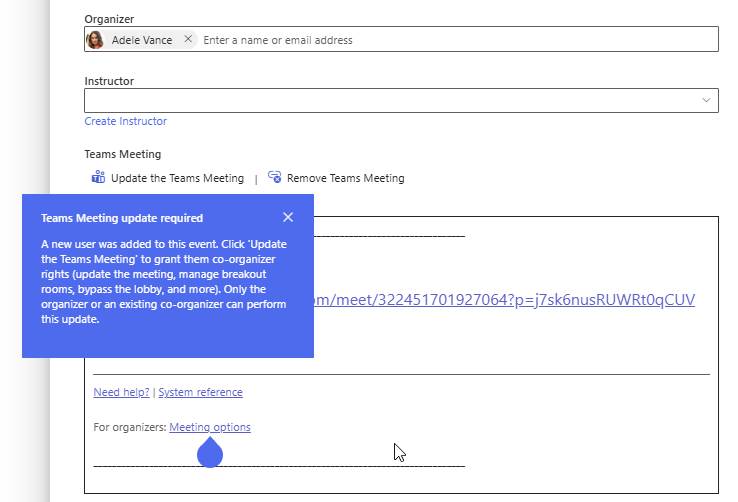
Teams Meeting Update Reminder
A new coachmark is displayed when users modify relevant form fields, reminding them to update the associated Teams meeting using the Edit Teams Meeting button.
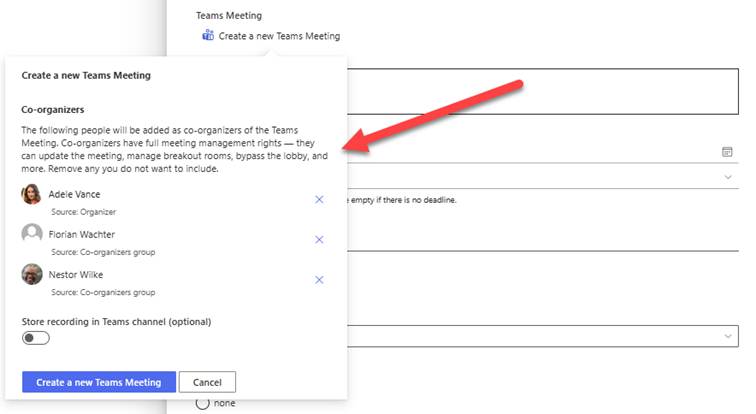
Improved Teams Meeting Management
The Teams Meeting dialog now displays all configured co-organizers and allows organizers to remove users who should no longer be assigned as co-organizers.
Show Teams Meeting attendance command in Manage Enrollments view
If the event contains a Teams Meeting link, the command ‘Teams Meeting Attendance Report’ is visible in the Manage Enrollments view. Users can use this command to review the attendance update the achievement accordingly.
Form Opening Based on View Configuration
When users select an event in a calendar view, the app now evaluates the columns displayed in the source calendar view and automatically opens either the standard form or the details page accordingly.
Preserve Custom Filters When Updating View XML
If a web part view changes and custom View XML is configured, the generated View XML is now updated to match the new view while preserving any custom filters that were previously configured.
Enhanced Form Validation Experience
Validation has been improved to clearly show which fields contain errors. Invalid fields are highlighted, and users can click validation messages to automatically navigate to the corresponding field.
Content Type Hidden Field Warning
In form design mode, fields that are hidden at the content type level are now clearly identified with a warning message. If such a field is added and the form is saved, the hidden setting will be removed automatically.
Custom Cancellation Page
A new Custom Cancellation Page feature has been added to provide greater flexibility when users cancel an enrollment.
Administrators can now configure a CancellationRedirectURL in the settings list. When a user selects Cancel Enrollment, they will be redirected to the specified URL instead of the enrollment being cancelled immediately.
This allows organizations to:
- Collect a reason for the cancellation
- Display additional cancellation terms or information
- Require user confirmation before processing the cancellation
- Implement custom cancellation workflows
The URL automatically includes the current enrollment ID. This can be configured in one of two ways:
- Include {ID} directly in the configured URL, which will be replaced with the enrollment ID.
- If {ID} is not present in the URL, the system automatically appends EnrollmentID={ID} as a query string parameter.
Example Scenario
A common implementation is to redirect users to the Edit Form of the enrollment item, which contains:
- A Yes/No column named Cancel Enrollment
- A Multiple Lines of Text column named Reason for Cancellation
Users can provide a cancellation reason and confirm their intent to cancel. A simple Power Automate flow can then monitor changes to the enrollment list and automatically process the cancellation when Cancel Enrollment = Yes.
This approach provides a more controlled and auditable cancellation process while enabling organizations to capture valuable feedback from users.
🛠️ For Employee Training Management App
View Achievements Command in Manage Enrollments
The View Achievements command is now available directly in Manage Enrollments when the view is opened for a single event, course, or curriculum.
Achievement Value Refresh in Manage Enrollments
A change has been made to ensure the Achievement value remains accurate when updated from the Manage Enrollments view.
Previously, updating an achievement directly from the Manage Enrollments view did not automatically refresh the value displayed in the Achievement column, which could result in outdated information being shown.
With this update, the Achievement column value is now automatically updated whenever an achievement is modified through the Manage Enrollments view, ensuring that displayed achievement information remains current and consistent throughout the enrollment management process