Applies to Event Management & Employee Training Management
Entra ID App-Permissions requested by Sapiens Apps
Adding and configuring SharePoint|sapiens apps like Event Management or Employee Training Management requires Entra ID Enterprise Application permissions being granted. This article describes the permissions, what we use them for, and which and how you can manage/revoke them easily.
Why do our Apps request Permissions?
Apps need permissions to configure the site
When an administrator adds an app to a site, the app request permissions from Entra ID. These permissions have to be granted by a global tenant administrator. With these permissions in hand, the app can now add lists and content, add UI/UX components and register web services to serve requests. It configures the site, so the app can do what it’s designed for.
In this access scenario, a global administrator is using the app. The app accesses the site on behalf of the signed-in user. This delegated access requires delegated permissions. As with other delegated scopes the minimal intersection of application and user permissions is used. For more information about the delegated access scenario, see delegated access scenario on Microsoft Learn.
Apps need permissions to do a user’s tasks
Let’s take an example: Imagine you are using the Employee Training Management app in a Learner role. In terms of SharePoint permissions this means that you are in a site visitor’s role: You can see, what’s for your eyes but you’re not permitted to add or modify any content here. The L&D team has published and scheduled some offerings you can sign up for, a curriculum containing some classroom training, online classes via Teams and self-paced training including exercises and quizzes for example.
Once you sign up for this curriculum, a lot of things happen: You’ll be enrolled in each of the scheduled classes, you’ll receive RSVP calendar invites in Outlook for the scheduled events, items like “achievement” and “enrollment” will be added to lists in this site and many other actions. When you accept the calendar invites in Outlook, the reply will be processed and the trainers can see in the Manage Enrollments view of each class, that you confirmed the invite, so they can prepare for your attendance. All this is done by the app, and therefore the app must have the required App-only access (Access without a signed-in user) permissions 🙂
For more information about the app-only access scenario, see app-only access scenario on Microsoft Learn.
Apps need permission to access other APIs
As an administrator for SharePoint, you have the capacity to add and enable apps in an app catalog site and make them available for global administrators, so they can add apps to SharePoint sites.
Once you enable an app in the app catalog, the app requests API permissions when you enable it. These API permissions are optional and enable additional features, when enabled.
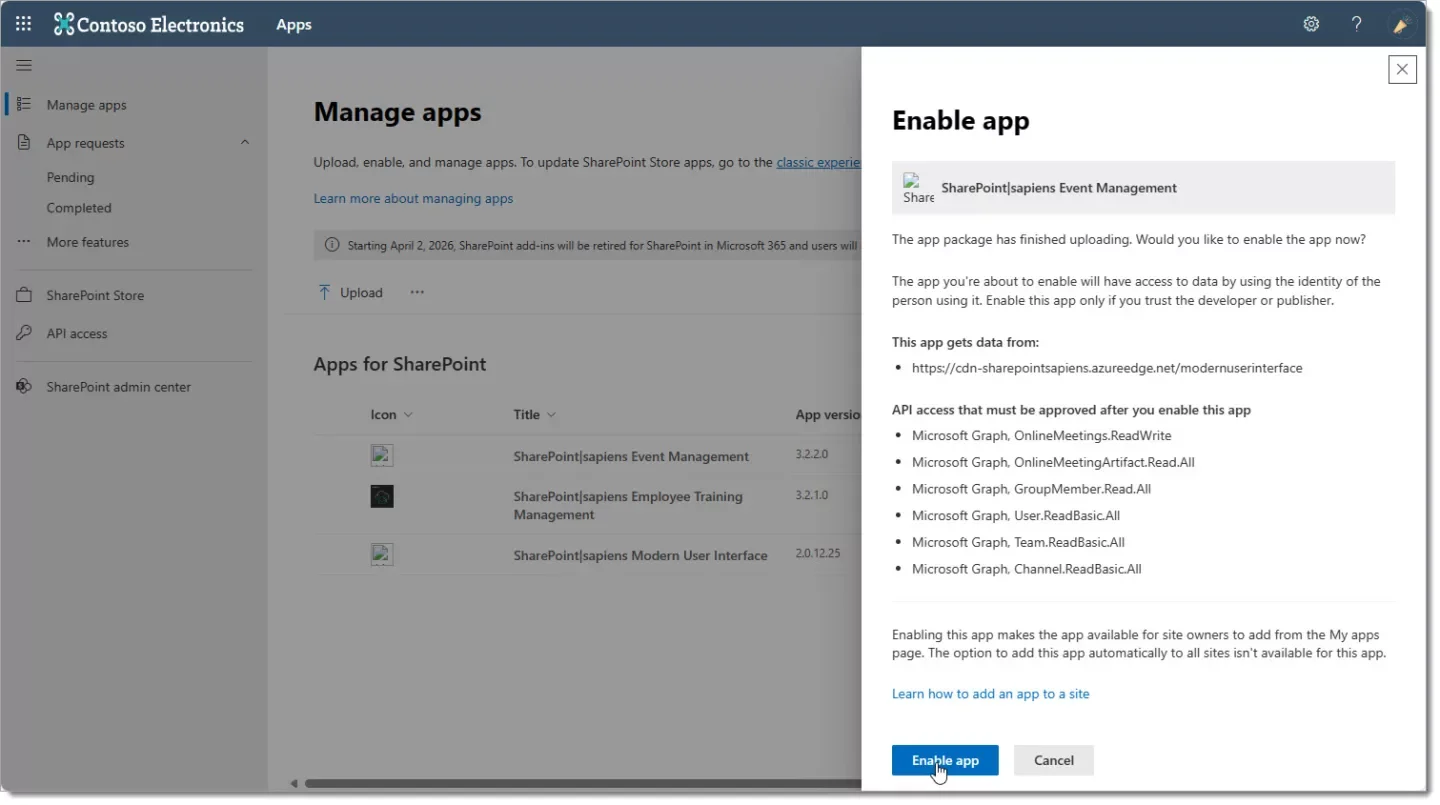
The example above shows permissions requested when the app is enabled, and the example below shows the same permissions while you approve them in the SharePoint Admin Center, API Permissions.

This permits the app to use permissions that are managed in detail within the SharePoint Online Client Extensibility Web Application Principal Entra ID Enterprise Application. Click here to learn more about the SharePoint Online Client Extensibility Web Application Principal below.
Are permissions requested justified? YES!
When we submit our apps to Microsoft’s Store Submissions Team for verification, we are required to pass along justification for the permissions the apps request. Any permission requested must therefore be justified with a good reason, that’s aligned with Microsoft’s guidelines and the apps’ purpose. Any misalignment will lead to the apps being rejected and not published in AppSource and the Teams-AppStore. The usage of permissions is in line with what the app promises and Microsoft permits to request. This is one good reason why you can trust our apps.
The Entra ID Enterprise Applications
Our Apps use 3 Entra ID Enterprise Applications we create. Plus, one that permits SharePoint extensibility in general.
SharePoint|sapiens Connector
Permissions for this enterprise application are used by the app’s settings page, by the Teams apps’ bot (the bot-guided installer 🙂) and by the account overview that lists all sites you are permitted to access and where our apps were added before.
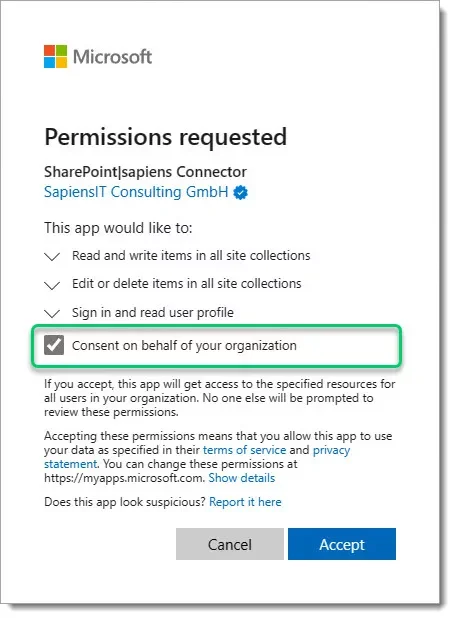
Users must consent the permission request, or an administrator can consent for the organization so not everybody has to consent.
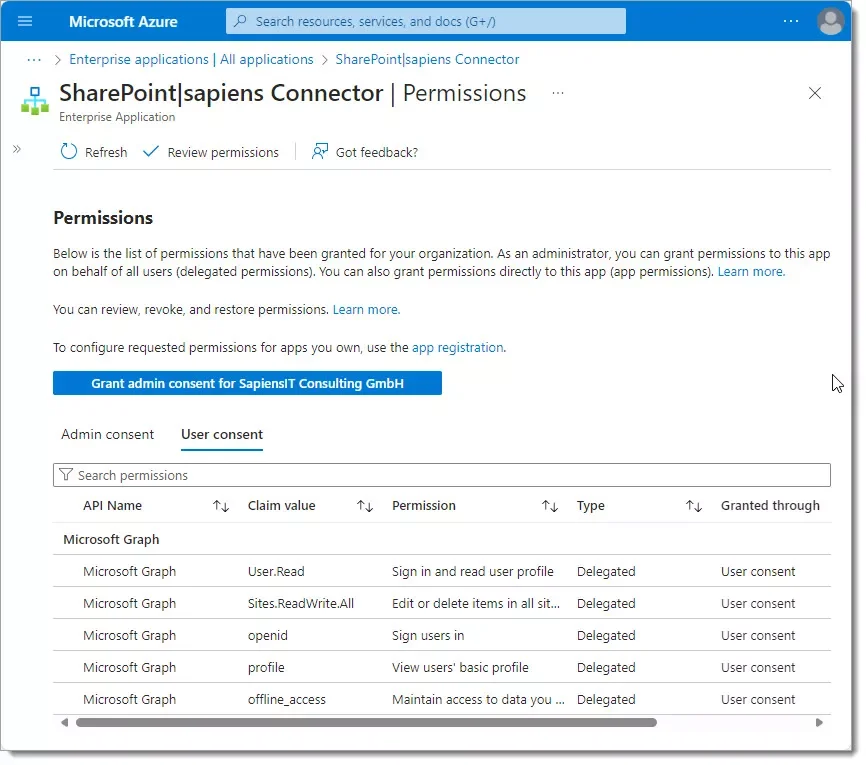
When you open the app’s settings page for example, the page loads data from the site. This access requires some permissions. You consent that the app’s settings page uses the permissions you were granted for this site, when accessing the site in your name; That’s when you open the page. Both, the app and your account must be authorized separately to make the request. As you can see above, all permissions are delegated, this means the minimal intersection of application and user permissions is used.
SharePoint|sapiens Connector for Administrators (Standard deployment/upgrade)
When the app is added to a site, then the app needs the permission in this enterprise app to do all the configuration task. Alternatively, you can also use the SharePoint|sapiens Site Connector app (Least privilege deployment/upgrade mode).
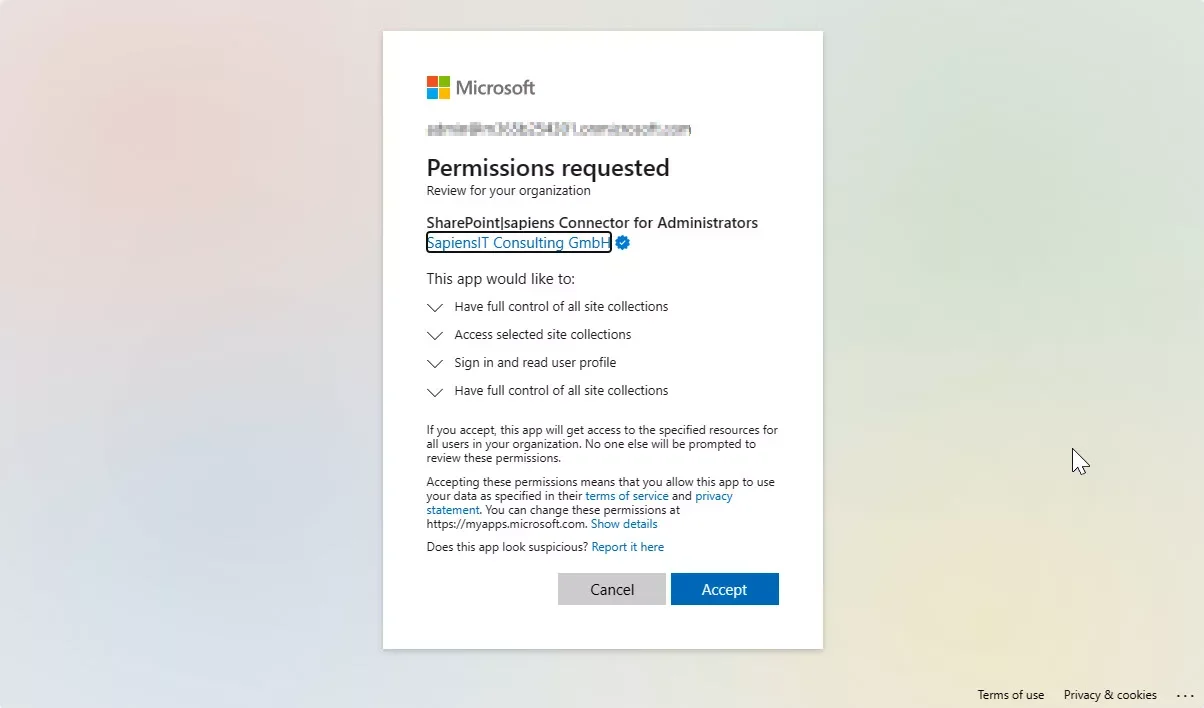
Once the configuration is done, you can revoke all but Sites.Selected (Access selected site collections). This is the only one of type “Application” and is required for the app to work. The other ones are of type “Delegated” and can be revoked when configuration is done. Again, “Delegated” means that the minimal intersection of application and user permissions is used.
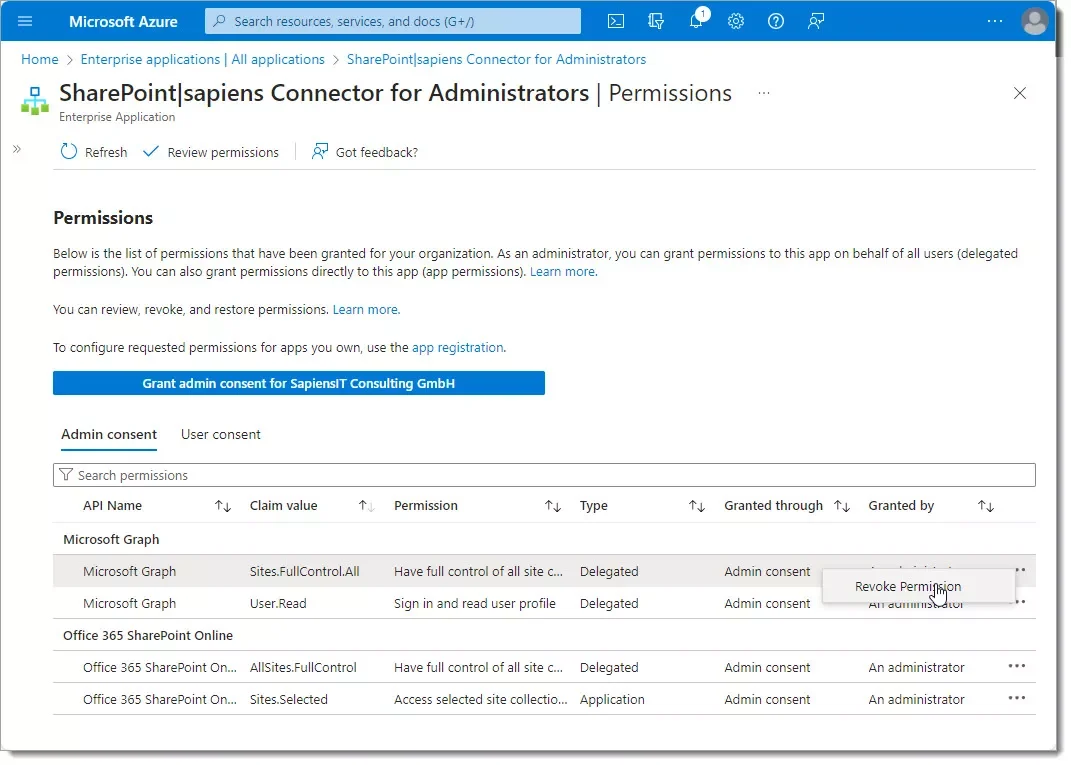
This Entra ID app requests the following permissions:
Access selected site collection, Sites.Selected, SharePoint API
Description from Microsoft: Allow the application to access a subset of site collections without a signed in user. The specific site collections and the permissions granted will be configured in SharePoint Online.
Request API: SharePoint (https://[company].sharepoint.com)
Why does the app need this permission? The app uses this permission to access the SharePoint site where the Sapiens app is configured. It’s needed to provide all the features (enrollments, invitations, reply tracking, etc.).
What means Sites.Selected? Sites.Selected can be used for “application only access” and it can be permitted granular to individual sites instead of whole tenant. Instead of the Sites.<something>.All application permissions, sites.selected can be used just for specific target site collections where the application should have the permissions needed.
Once the Sites.Selected application permission is granted, the application still can’t access any target site collection. In order to be able to access any target site, a application with Sites.FullControl.All application permission is needed to grant explicit permissions for the selected target site. This is what the next permission is for: Sites.FullControl.All
For more information about the sites.selected permission and why it’s recommended, see this article on Microsoft Learn.
This is the only permission the app will need after the initial setup.
Have full control of all site collection, Sites.FullControl.All, Microsoft Graph API
Description from Microsoft: Allow the application to have full control of all site collections on your behalf.
Request API: Microsoft Graph (https://graph.microsoft.com/)
Why does the app need this permission? This is needed to assign the “Access selected site collection (sites.selected)” permission to the SharePoint website (see above).
This permission is only needed during the setup and can be removed after the app has been added and configured.
Have full control of all site collections, AllSites.FullControl, SharePoint API
Description from Microsoft: Allow the application to have full control of all site collections on your behalf.
Request API: SharePoint (https://[company].sharepoint.com)
Why does the app need this permission? This permission is needed in case you upgrade from the SharePoint|sapiens add-ins. We need this app to remove the previously installed add-in once the upgrade is completed. If you install our app using the bot-guided-installer, this permission is needed to upload the SPFx app (SharePoint|sapiens Event Management or SharePoint|sapiens Employee Training Management) to the tenant app catalog and to add the app to the SharePoint website.
This permission is only needed during the upgrade and can be removed again.
Sign in and read user profile, User.Read, Microsoft Graph API
Description from Microsoft: Allows you to sign in to the app with your organizational account and let the app read your profile. It also allows the app to read basic company information.
Request API: Microsoft Graph (https://graph.microsoft.com/)
Why does the app need this scope? The app doesn’t use this permission. It’s the default permission for all Entra ID apps and it’s required for proper application functionality.
SharePoint|sapiens Site Connector (Least privilege deployment/upgrade)
When the app is added to a site, then the app needs the permission in this enterprise app to do all the configuration task. Alternatively, you can also use the SharePoint|sapiens Connector For Administrators app (Standard deployment/upgrade mode).
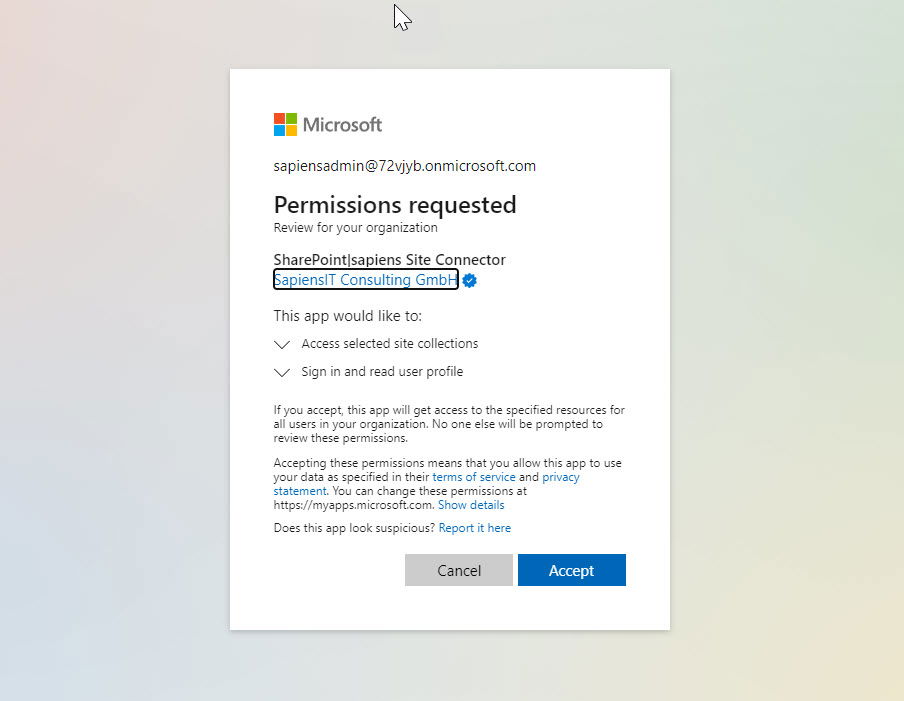
The Sites.Selected (Access selected site collections) permission is the only one of type “Application” and is required for the app to work. The other permission (Sign in and read user profile) is of type “Delegated”.
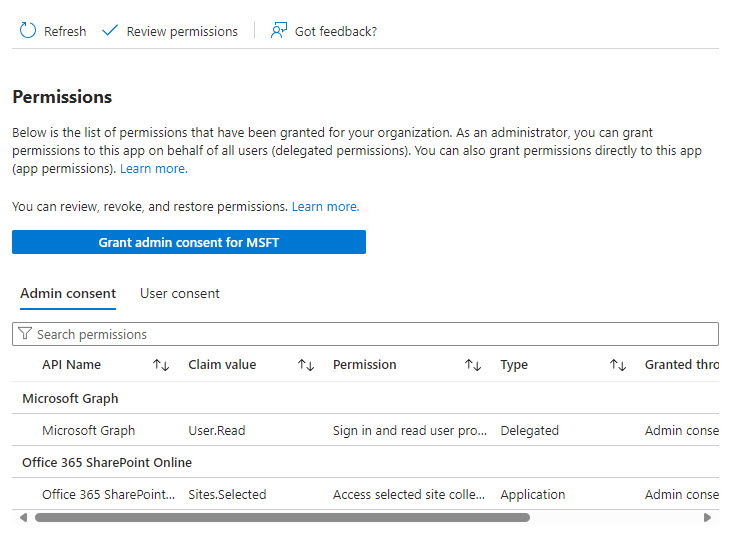
This Entra ID app requests the following permissions:
Access selected site collection, Sites.Selected, SharePoint API
Description from Microsoft: Allow the application to access a subset of site collections without a signed in user. The specific site collections and the permissions granted will be configured in SharePoint Online.
Request API: SharePoint (https://[company].sharepoint.com)
Why does the app need this permission? The app uses this permission to access the SharePoint site where the Sapiens app is configured. It’s needed to provide all the features (enrollments, invitations, reply tracking, etc.).
What means Sites.Selected? Sites.Selected can be used for “application only access” and it can be permitted granular to individual sites instead of whole tenant. Instead of the Sites.<something>.All application permissions, sites.selected can be used just for specific target site collections where the application should have the permissions needed.
Once the Sites.Selected application permission is granted, the application still can’t access any target site collection. In order to be able to access any target site, a application with Sites.FullControl.All application permission is needed to grant explicit permissions for the selected target site. This is what the next permission is for: Sites.FullControl.All
For more information about the sites.selected permission and why it’s recommended, see this article on Microsoft Learn.
Sign in and read user profile, User.Read, Microsoft Graph API
Description from Microsoft: Allows you to sign in to the app with your organizational account and let the app read your profile. It also allows the app to read basic company information.
Request API: Microsoft Graph (https://graph.microsoft.com/)
Why does the app need this scope? The app doesn’t use this permission. It’s the default permission for all Entra ID apps and it’s required for proper application functionality.
SharePoint|sapiens Event Management for Office 365
When configuring the app you can decide to send email invitations using our Sapiens email service or an Exchange mailbox in your own tenant. If you configure your own Exchange mailbox, you have to approve permissions for this Entra ID app. Learn more about how to configure emails
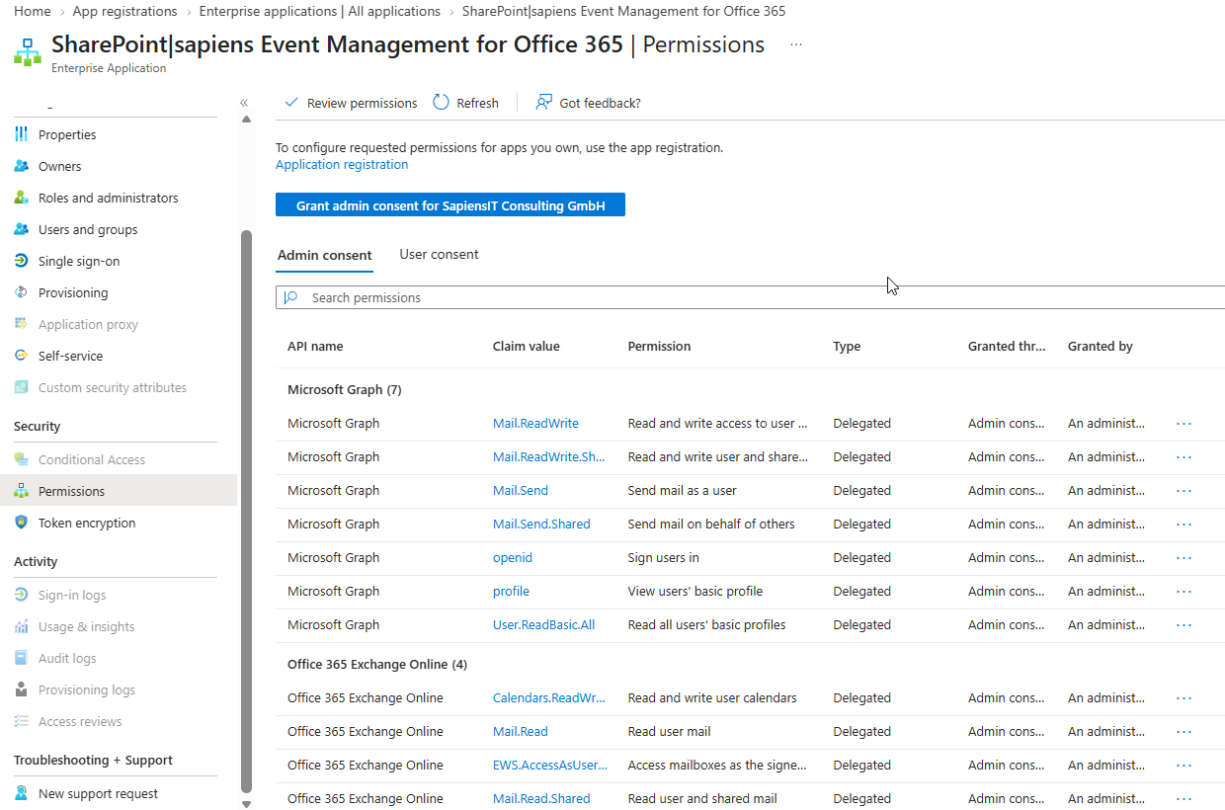
If you want to use your own Exchange mailbox to send and receive emails, you need to consent that the app receives permissions for the following resources. You don’t have to grant this permission for all users (no global admin is required), you only accept the permissions for the specified mailbox, not to other user accounts or mailboxes.
Why does the app request both Microsoft Graph and Exchange Web Services (EWS) permissions?
New installations of SharePoint|sapiens Event Management use Microsoft Graph API for sending email invitations and notifications. Customers who previously configured the app using Exchange Web Services (EWS) can migrate to Microsoft Graph API using the procedures described in the article:
Upgrade from Exchange Web Services (EWS) to Microsoft Graph API
Because some existing customers may still be using the legacy EWS integration, the application registration continues to include EWS permissions. These permissions are only used by customers who have not yet migrated. New customers and customers already migrated to Microsoft Graph API do not use the EWS functionality.
Permissions used by Microsoft Graph API
Sign you in and read your profile (User.Read)
Description from Microsoft: Allows users to sign in to the application and allows the app to read the profile of the signed-in user.
Request API: Microsoft Graph
Why SharePoint|sapiens needs this permission:
Used to authenticate the configured mailbox account and retrieve basic information about the mailbox and tenant.
Read and write access to user mail (Mail.ReadWrite)
Description from Microsoft: Allows the app to create, read, update and delete messages in the signed-in user’s mailbox.
Request API: Microsoft Graph
Why SharePoint|sapiens needs this permission:
Used to manage event-related email messages and process mailbox communication used by the Event Management solution.
Read and write user and shared mail (Mail.ReadWrite.Shared)
Description from Microsoft: Allows the app to create, read, update and delete mail that the signed-in user can access, including shared mailboxes.
Request API: Microsoft Graph
Why SharePoint|sapiens needs this permission:
Required when the configured mailbox has access to shared mailboxes that are used for event communication.
Send mail as a user (Mail.Send)
Description from Microsoft: Allows the app to send mail as the signed-in user.
Request API: Microsoft Graph
Why SharePoint|sapiens needs this permission:
Used to send event invitations, registration confirmations, reminders and other event-related notifications from the configured mailbox.
Send mail on behalf of others (Mail.Send.Shared)
Description from Microsoft: Allows the app to send mail as or on behalf of mailboxes the signed-in user has permission to access.
Request API: Microsoft Graph
Why SharePoint|sapiens needs this permission:
Required when event communications are sent from a shared mailbox or from a mailbox for which the configured account has delegated sending permissions.
Read user mail (Mail.Read)
Description from Microsoft: Allows the app to read email in the signed-in user’s mailbox.
Request API: Microsoft Graph
Why SharePoint|sapiens needs this permission:
Used to process inbound event-related email communication received by the configured mailbox.
Read user and shared mail (Mail.Read.Shared)
Description from Microsoft: Allows the app to read mail that the signed-in user can access, including shared mailboxes.
Request API: Microsoft Graph
Why SharePoint|sapiens needs this permission:
Required when inbound event-related messages are received through shared mailboxes accessible by the configured account.
Permissions used for room and resource selection
View users’ basic profile (User.ReadBasic.All)
Description from Microsoft: Allows the app to read a basic set of profile properties of users in the organization on behalf of the signed-in user.
Request API: Microsoft Graph
Why SharePoint|sapiens needs this permission:
Used to display available room and resource mailbox information when selecting locations and resources for events.
The information retrieved is limited to basic profile information such as display name and email address.
Read all users’ basic profiles (User.ReadBasic.All)
Description from Microsoft: Allows the app to read a basic set of profile properties of other users in the organization on behalf of the signed-in user.
Request API: Microsoft Graph
Why SharePoint|sapiens needs this permission:
Used to discover Exchange resource mailboxes such as meeting rooms and equipment resources and display them within Event Management.
The information retrieved is limited to basic profile properties such as resource name and email address.
Note: Depending on the Microsoft consent experience, this permission may appear as “View users’ basic profile” or “Read all users’ basic profiles”. Both descriptions refer to access to basic directory profile information used for resource and room selection.
Legacy permissions used only by customers who still use Exchange Web Services (EWS)
The following permissions are retained solely for backward compatibility with customers that have not yet migrated from Exchange Web Services (EWS) to Microsoft Graph API. New installations do not use these permissions.
Read and write user calendars (Calendars.ReadWrite)
Description from Microsoft: Allows the app to read, create, update and delete events in the configured mailbox calendar.
Request API: Exchange Web Services (EWS)
Why SharePoint|sapiens needs this permission:
Used by the legacy EWS integration to manage appointments and events in the configured mailbox calendar.
Access mailboxes as the signed-in user via Exchange Web Services (EWS.AccessAsUser.All)
Description from Microsoft: Gives the application full access to the signed-in user’s mailbox through Exchange Web Services.
Request API: Exchange Web Services (EWS)
Why SharePoint|sapiens needs this permission:
Required by the legacy EWS integration to read and process mailbox data for event communication.
The SharePoint Online Client Extensibility Web Application Principal
This app registration is used by SharePoint Framework apps when making calls to Azure AD secured APIs. The app is created for you automatically. When a SharePoint Framework app package is deployed, the admin can approve the permission requests using the API access page in the SharePoint Admin Center. Behind the scenes, changes made in the API access page are changing the permissions associated with the SharePoint Online Client Extensibility Web Application Principal app registration.
Our SharePoint Framework apps include the following API permissions. Administrators can approve them in the API access when the apps are deployed. These API permissions are needed if you want to use specific features. The API permissions and what features they are used for are listed below.
Microsoft Graph: OnlineMeetings.ReadWrite
Users can create Teams meeting directly in SharePoint when scheduling events. For this ‘OnlineMeetings.ReadWrite’ is necessary
Microsoft Graph: OnlineMeetingArtifact.Read.All
Users can view the teams meeting attendance once a meeting has been completed directly in SharePoint. For this OnlineMeetingArtifact.Read.All is required
Microsoft Graph: GroupMember.Read.All
It’s possible to enroll an entire Microsoft 365 group to an event. For this GroupMembers.Read.All is required.
Microsoft Graph: User.ReadBasic.All
It’s possible to enroll an entire Microsoft 365 group to an event. For this User.ReadBasic.All is required.
https://www.sharepointsapiens.com/help/documentation/enroll-groups-and-distribution-lists/
Microsoft Graph: Team.ReadBasic.All
When users create a teams meeting directly in SharePoint, they can select if they want to create the Teams meeting form a Teams channel. For this Team.ReadBasic.All is required
Microsoft Graph: Channel.ReadBasic.All
When users create a teams meeting directly in SharePoint, they can select if they want to create the Teams meeting form a Teams channel. For this Team.ReadBasic.All is required.
Microsoft Forms: Forms.Read
Only used in the Employee Training Management app. Organizers can decide if users should complete an Microsoft Forms quiz before a course can be completed. To be able to configure the form ‘Forms.Read’ is required
Microsoft Forms: Responses.Read.All
Only used in the Employee Training Management app. Organizers can decide if users should complete an Microsoft Forms quiz before a course can be completed. To check the quiz result ‘Responses.Read.All’ is required.
What happens when I agree?
In simple words, when you agree, you tell Microsoft 365 that you permit the app to do what it was designed for. Microsoft 365 then creates a new entry in the list of apps you trust and puts a checkmark to each permission that was requested. If you want to view the list of apps, navigate to https://myapps.microsoft.com. Here you can view them all. Our apps will appear as SharePoint|sapiens Connector and SharePoint|sapiens Connector for Administrators
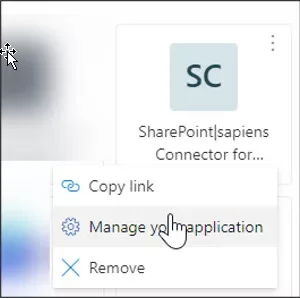
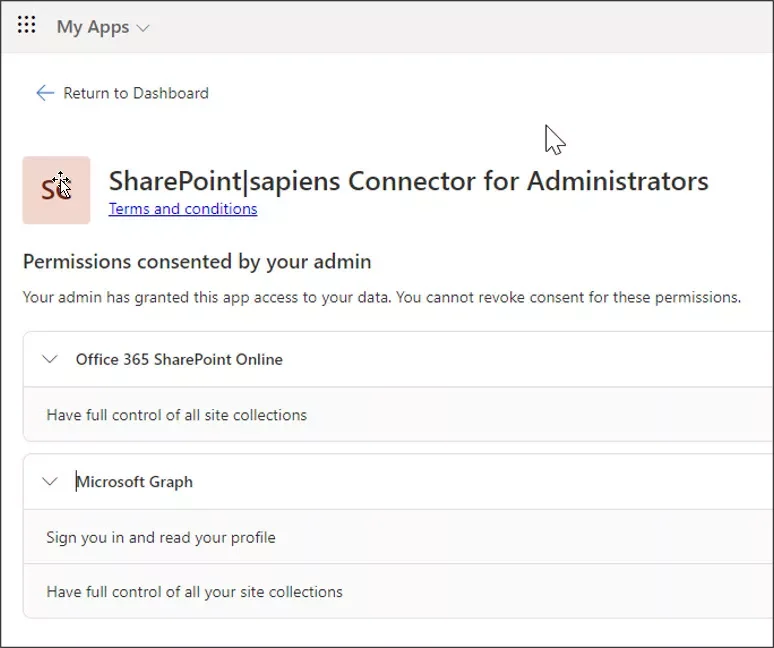
Manage the Permissions granted
From our side there is no need to change the permissions you granted to the app, when you accepted the request. But from a “least privilege” point-of-view it makes sense to manage permissions, that are requested for installation and configuration purposes only. Read on to learn how to find granted permissions and how to revoke them.
Where can I find the permissions granted to the app?
Once you have accepted the permissions on the consent screen, an Enterprise Application will be registered in your Microsoft Entra ID. Follow this link to view all registered Enterprise Applications https://portal.azure.com/#view/Microsoft_AAD_IAM/StartboardApplicationsMenuBlade/
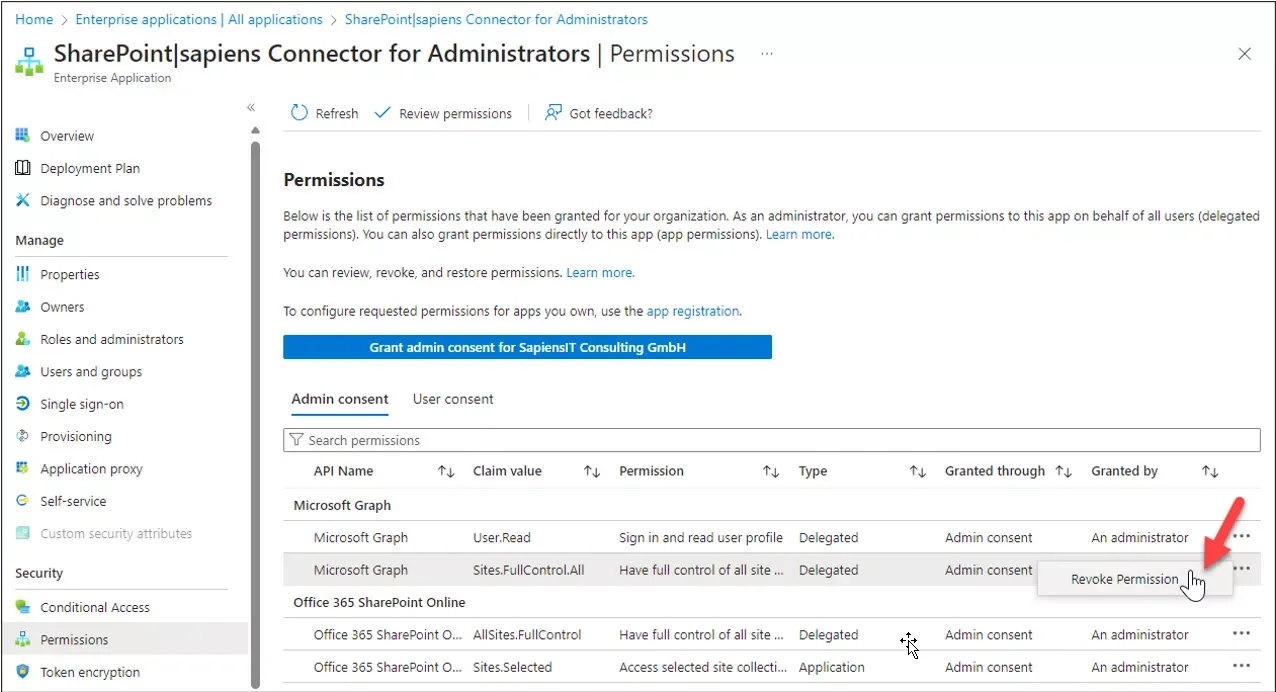
Look for the app ‘SharePoint|sapiens Connector for Administrators’ with the application id 5c9cf093-5783-4610-b607-397e495bf662. In the Permissions section you can now manage the permissions granted.
To revoke permission from this app, open the Permissions section. Look for the permission you want to remove. Click on the three dots to expand the permission’s context menu and click on ‘Revoke Permission’.
DO NOT REVOKE Sites.Selected!
All other permissions are required during the initial setup only. The permission Sites.Selected is required for the app to work (see above), so please don’t revoke it.
In case you want to list all SharePoint websites where Sites.Selected permissions is granted, please use the Graph API. Read the details here Get permission – Microsoft Graph v1.0 | Microsoft Learn
What to do if users need admin approval?
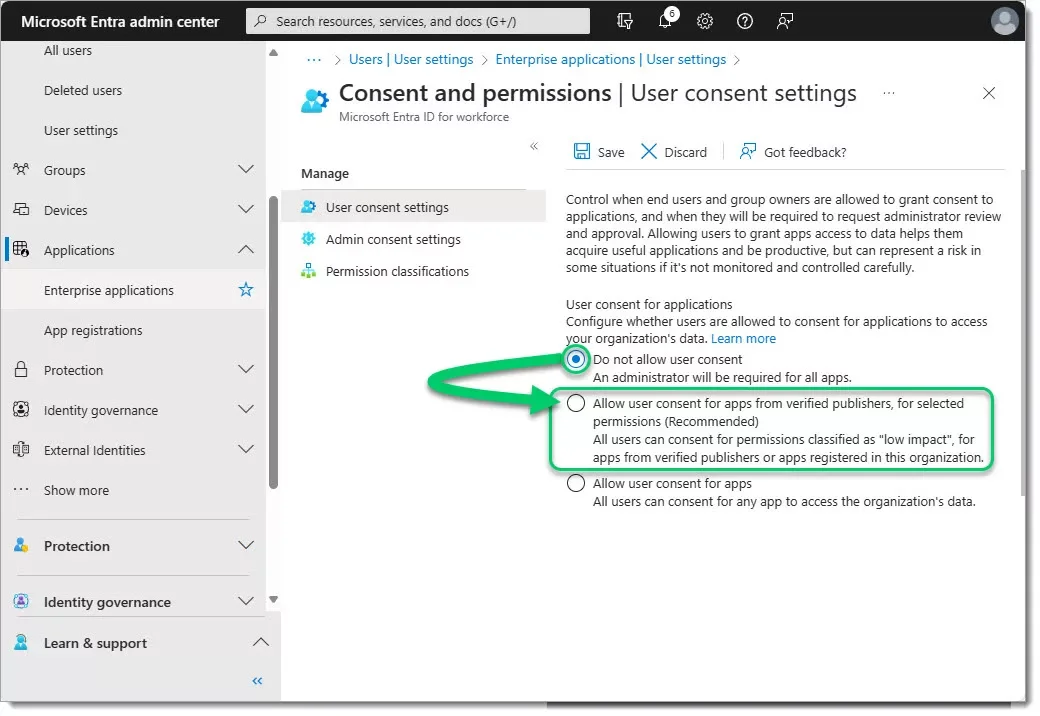
When site owners see the message ‘Need admin approval’ when they try to access the app settings, it means that ‘Do not allow user consent’ is configured in your tenants Entra ID. To solve this, use one of the options below.
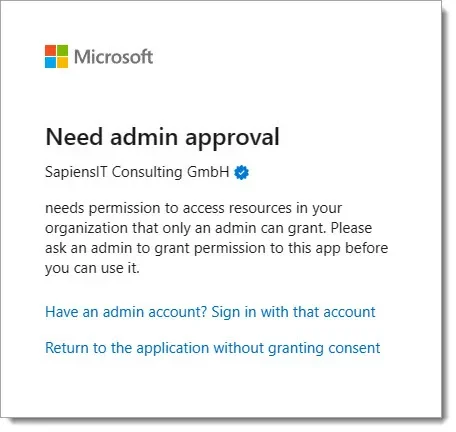
Option 1 is to consent on behalf of the organization as a tenant administrator. If you open the app settings as a global tenant administrator, you’ll see the consent screen with an option to consent on behalf of your organization. Now users don’t need to consent anymore and they can open the settings page without any issues.
Option 2 is to allow users to consent for apps from verified publishers like us. As you can see in the screenshot below, this is the recommended setting. If this is configured, users will see the consent screen when they open the settings page the first time and they can consent and accept the permissions.